How to navigate through veHaaS
Navigation bar

| Button | Description |
|---|---|
 |
Navigates you to the assembly overview. |
 |
Navigates you to the explorer. |
 |
Shows and lets you manage sessions of assemblies currently allocated to you or your group. |
 |
Search all assemblies, clusters, groups and organizations. Detailed description here. |
 |
Directly create Assemblies, VMs, Clusters, Organizations and Groups |
 |
Contains admin function e.g. creating banners. |
 |
Find links to the documentation, the FAQ, support or to give feedback. |
 |
Shows all notifications. |
 |
Navigate to the user profile or logout. |
Overview
In the overview all assemblies that are visible to you will be displayed. You can change the number of displayed assemblies per page, adjust the column width as well as sort by column.
Above the data grid there is a search bar for the assembly list.
The search bar uses a fuzzy search algorithm and therefore allows you to find results based on all values in the assembly profile.
On the bottom left you can expand the filter menu.
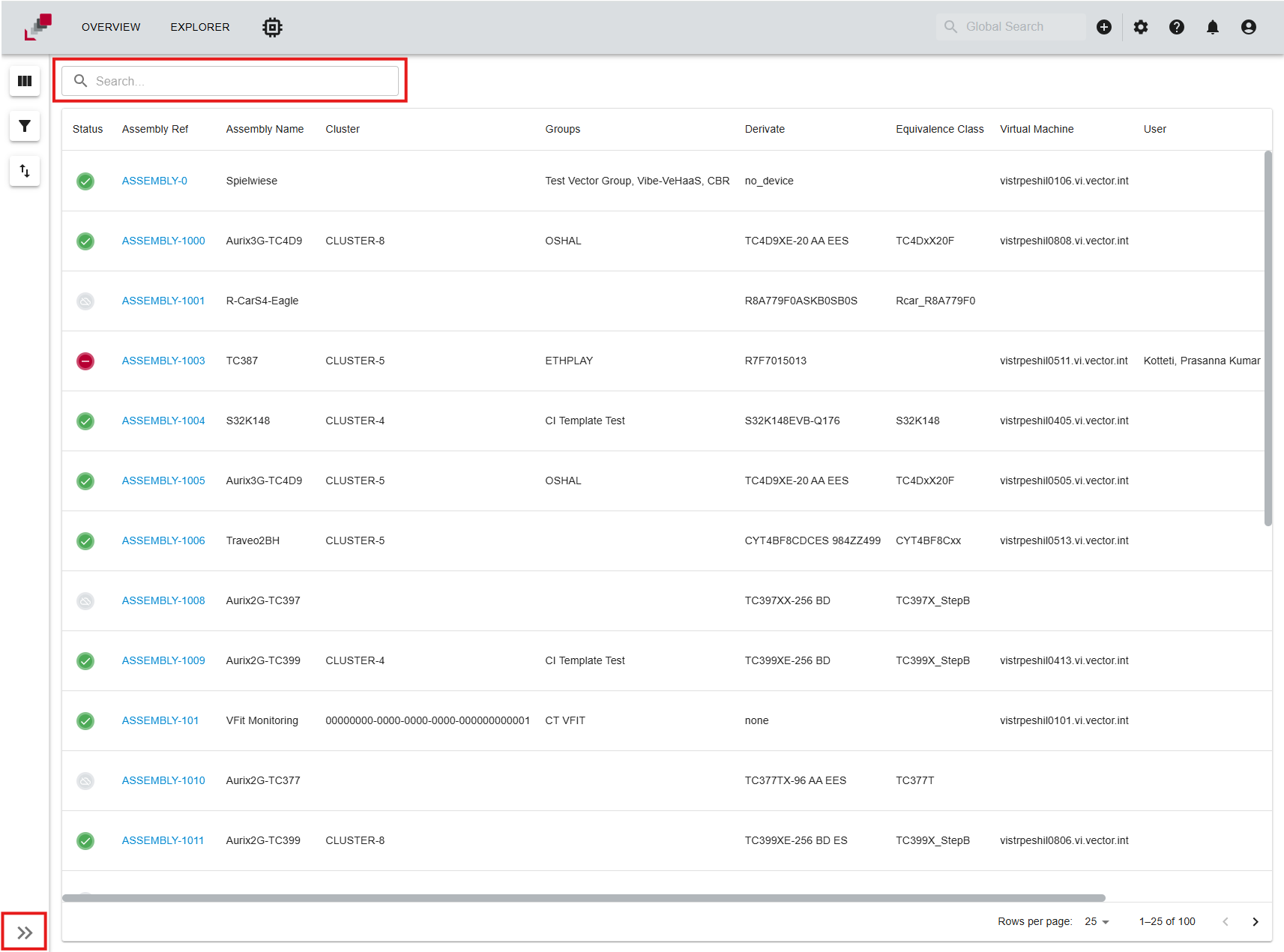
Filter menu
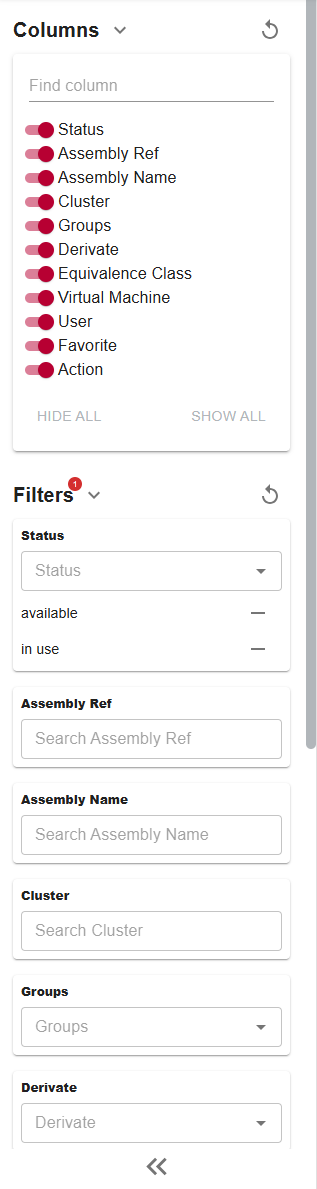
In the filter menu you can select the columns, that should be displayed. Additionally you can define filters for each column of the assembly list like status, name and so on.
If you change you columns and filters these changes will be saved in the browser. If you delete your cookies your changes will be reset.
You can reset all your column settings, filters and sorting manually on the top right of the filter menu.

Global search
The global search bar is located on the right side of the navigation bar. It allows the user to search for Assemblies, Clusters, Groups and Organizations. The search can be opened in two ways:
- By clicking the search input in the navigation bar.
- By hitting
"/"either on the numpad or the regular one (combo depending on the chosen keyboard language).

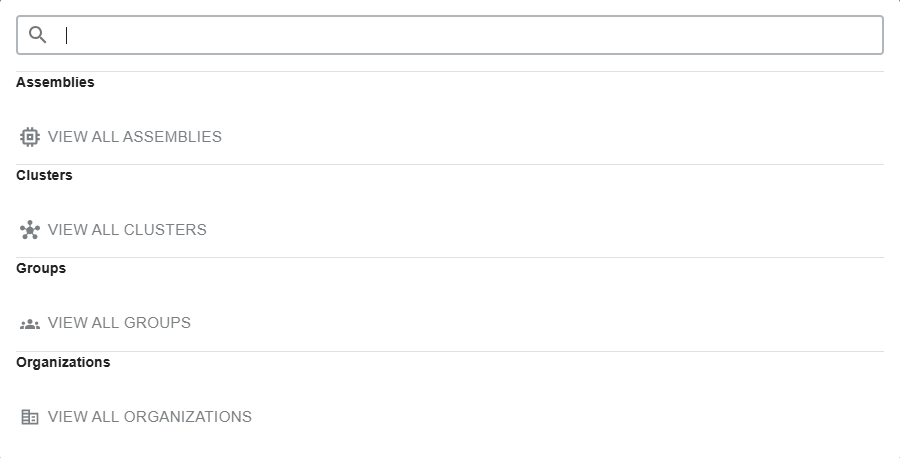
Fuzzy search
We use a fuzzy search algorithm to find matching resources. That means all available information of each resource is considered during the search process.
For assemblies this makes it possible to search for any values specified in the assembly profile. e.g. search assemblies by their VM hostname.
Explorer
The explorer page can be accessed by clicking the user icon in the top right corner of the website and selecting the Explorer option. It is the main page for managing the resources of the veHaaS service.
Dashboard
The dashboard is the first page you see when you open the explorer. It is a context sensitive page that shows an overview of the resources you can manage for the current context. A context in this case means a selected resource. For example if you select a specific organization from the resource list of organizations, the organization will be the context and the dashboard will show an overview of the resources that belong to that organization.
The resource types for each context type are as follows:
| Global Context | Organization Context | Group Context | Cluster Context |
|---|---|---|---|
| Organizations | |||
| Groups | Groups | ||
| Assemblies | Assemblies | Assemblies | |
| Users | Users | Users | |
| Clusters* | Clusters* | ||
| Access Tokens* | Access Tokens* | Access Tokens | |
| Virtual Machines |
Resources marked with a * are only visible to users with admin permissions on the context level.
Resource List
The resource list is a page that shows all resources of a specific resource type. The resource list is context sensitive and will show resources based on the current context. That means that visiting the resource list from the global context will in most cases show all resources of that type, while visiting the resource list for example from an organization context will only show resources of that type that belong to the context organization.
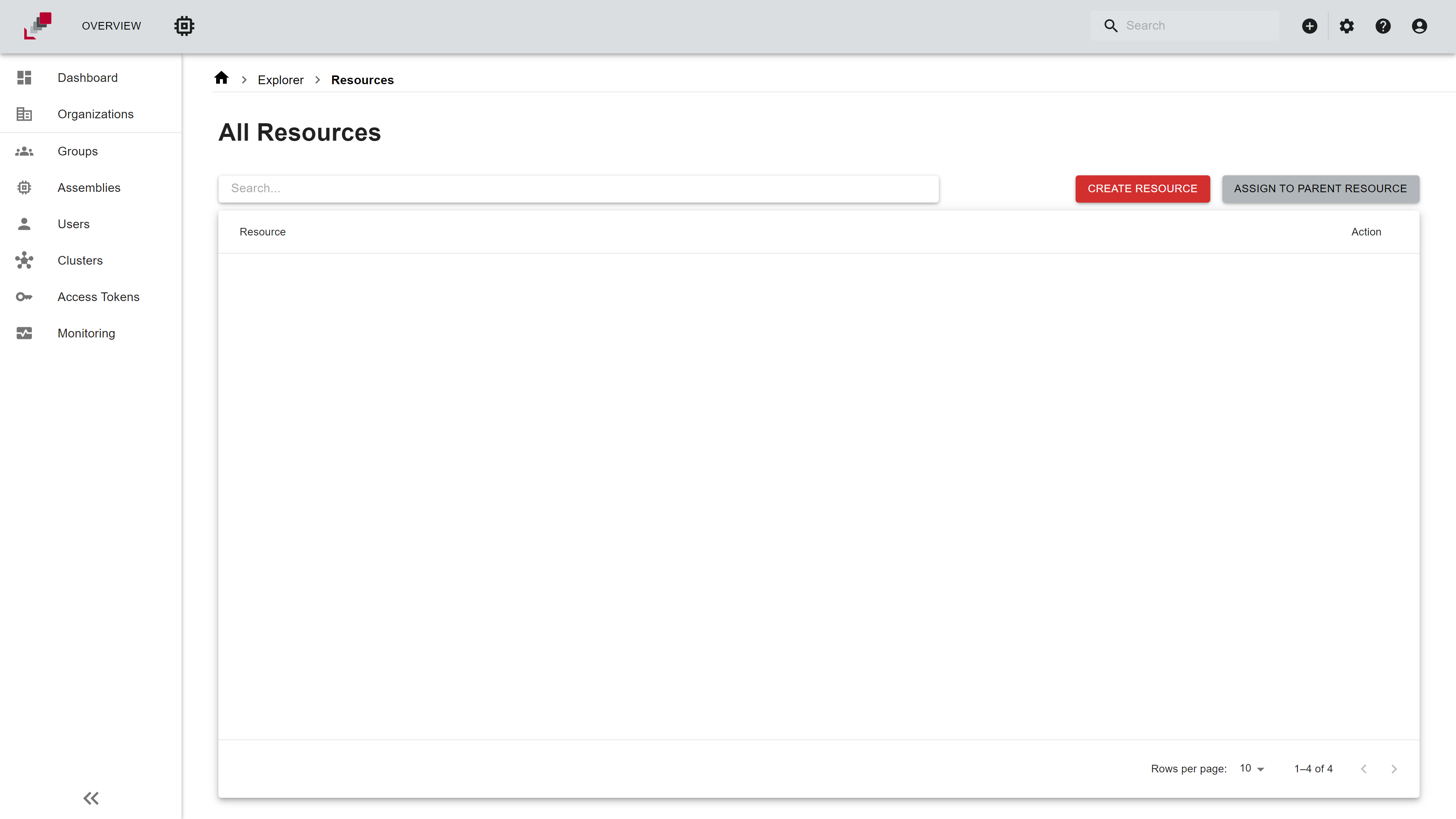
Resource actions
On the resource list page users can perform two types of actions: global actions and resource specific actions.
Global actions
- Create resource: In most resource list pages you will find a button to create a new resource of that type.
- Assign resource to parent resource: In nested resource lists you will sometimes find a button to assign a resource of the current resource type to the selected parent resource. For example if you are currently in the assembly resource list of a specific group you will be able to assign an assembly to that group.

Resource specific actions
Resource specific actions can vary between resource types. Currently you can perform the following actions by pressing the appropriate button in the action column of the row of the resource you want to perform the action on:
| Organization | Group | Assembly | User | Cluster | Access Token | Virtual Machine |
|---|---|---|---|---|---|---|
 Delete |
 Delete/Unassign (based on context) |
 Set on stock Edit Delete/Unassign (based on context) |
 Toggle Admin Rights (for context) Edit Delete/Unassign (based on context) |
 Edit Delete |
 Revoke Delete |
 Edit credentials Assign to assembly Edit Delete |
Monitoring
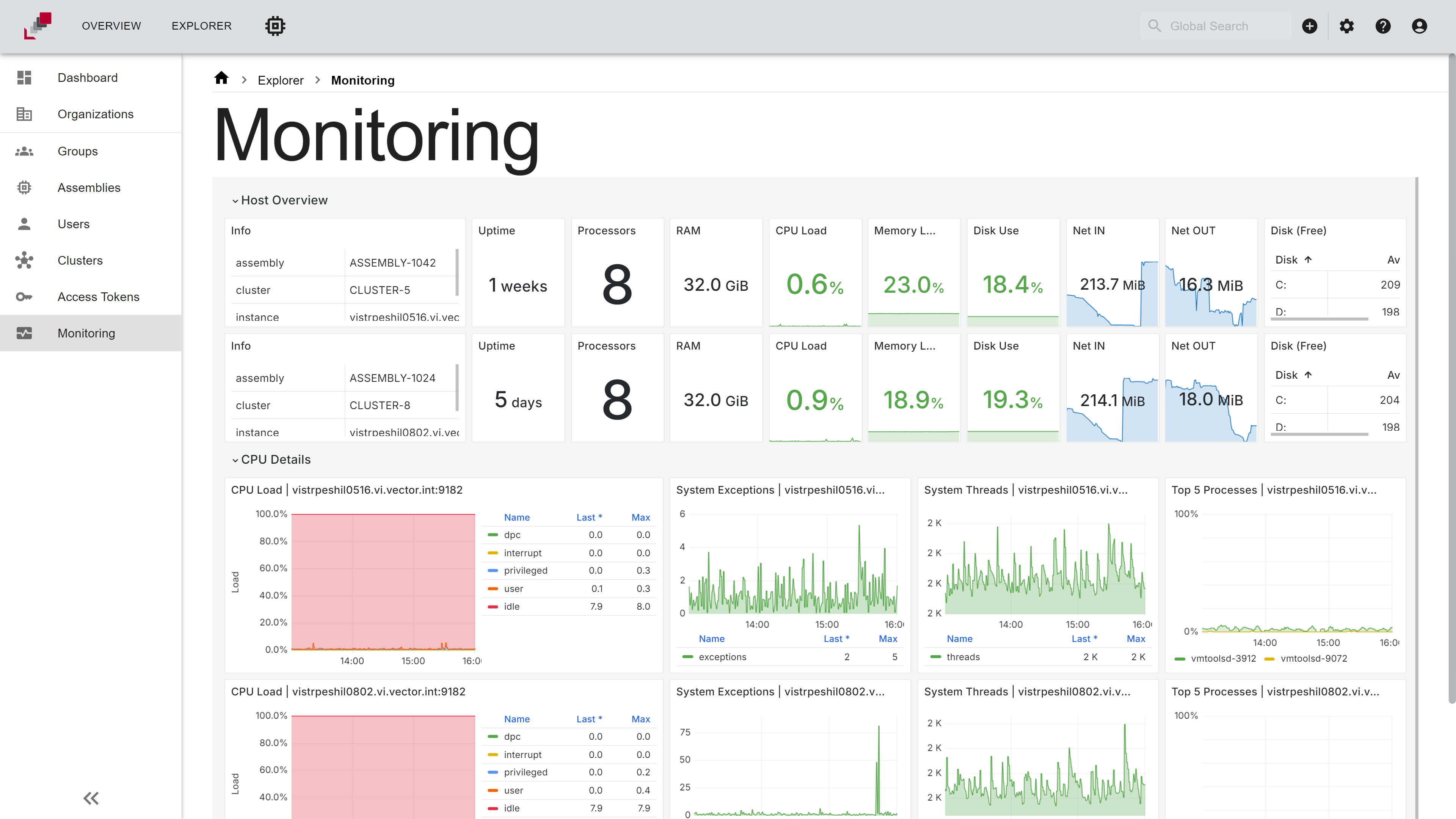
In addition to the resource list and dashboard, the explorer also provides a monitoring page. It can be accessed by selecting the Monitoring option from the explorer sidebar.
The monitoring page contains the following data for each assembly of the current context:
- Host Overview: Shows an overview of the assembly like uptime, processors, RAM, CPU load, memory load, disk space and network traffic.
- CPU Details: Shows the CPU load of the assembly over time as well as system threads and exceptions and the top 5 processes.
- Memory Details: Shows the memory load of the assembly over time as well as the top 5 processes.
- Network Details: Shows the network traffic of the assembly over time as well as network errors.
- Disk Details: Shows the disk space of the assembly over time as well as disk activity and I/O.
- Embedded Hardware Details: Shows details of the connected embedded hardware like power consumption of the different power lines.
As already mentioned the monitoring page is context sensitive and will only show data for assemblies that belong to the current context. For example if you are in the organization context the monitoring page will show data for all assemblies of the organization.
The explorer monitoring page contains the same information as the monitoring on the assembly page, but it shows the data for all assemblies of the current context.