Manage Access Tokens
Work in progress
This page is being written. Content marked with <!-- TODO --> needs to be filled in.
This page describes Organization Admin and Group Admin tasks for managing access tokens within your organization.
Access tokens at organization or group level are backed by a Technical User — a system-created account that holds the token's permissions.
Prerequisites
- Organization-level tokens: You must have the Organization Admin role.
- Group-level tokens: You must have the Group Admin role.
Organization-level tokens
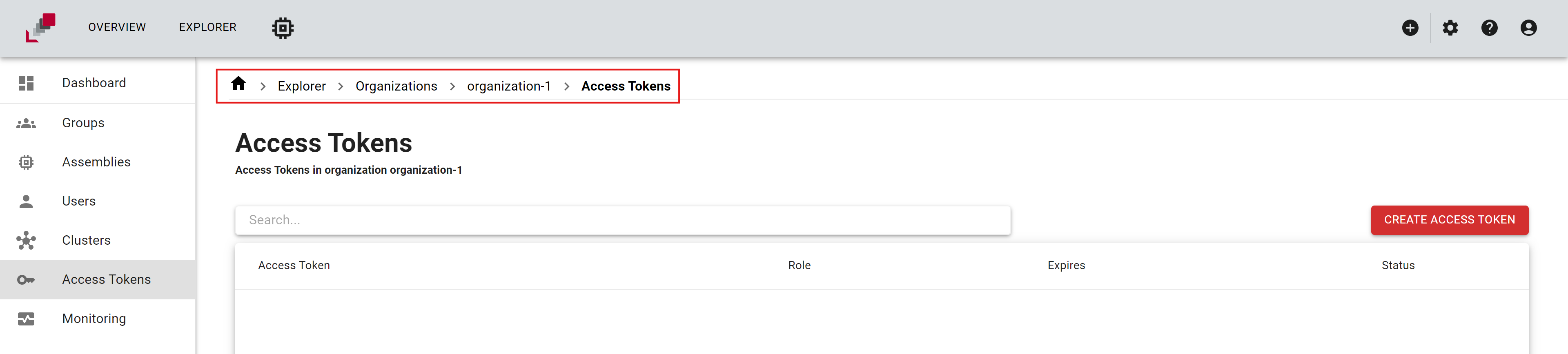
Organization-level tokens can be managed in the "Access Tokens" tab in the "Organization" page. Here you can view existing tokens, create new tokens, and revoke or delete tokens for an organization. With this token you can work with all resources that can be accessed with the assigned organization role (organization admin, organization user).
Group-level tokens
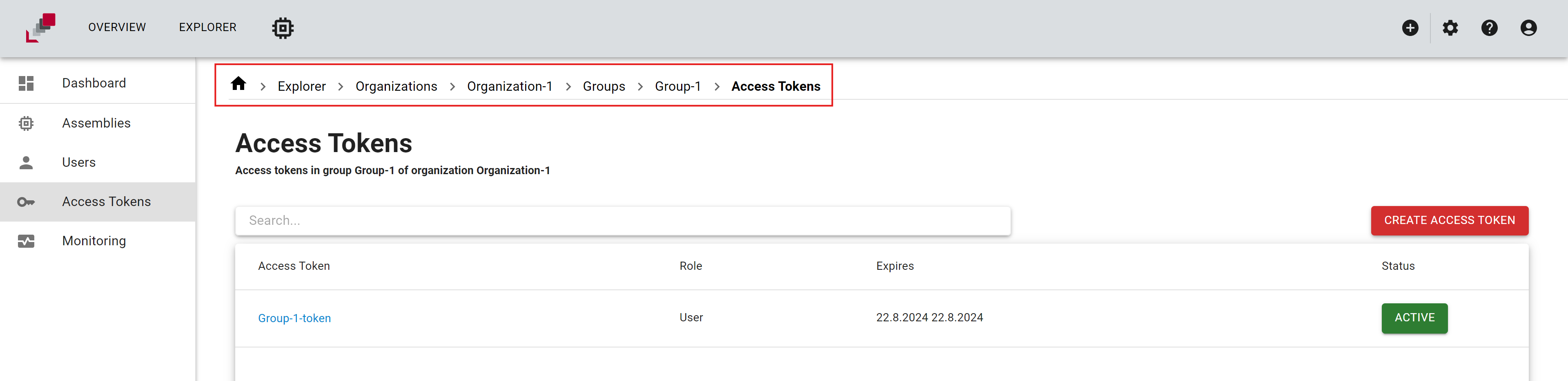
Group-level tokens can be managed in the "Access Tokens" tab in the "Group" page. Here you can view existing tokens, create new tokens, and revoke or delete tokens for a group. With this token you can work with all resources that can be accessed with the assigned group role (group admin, group user).
How to create an access token
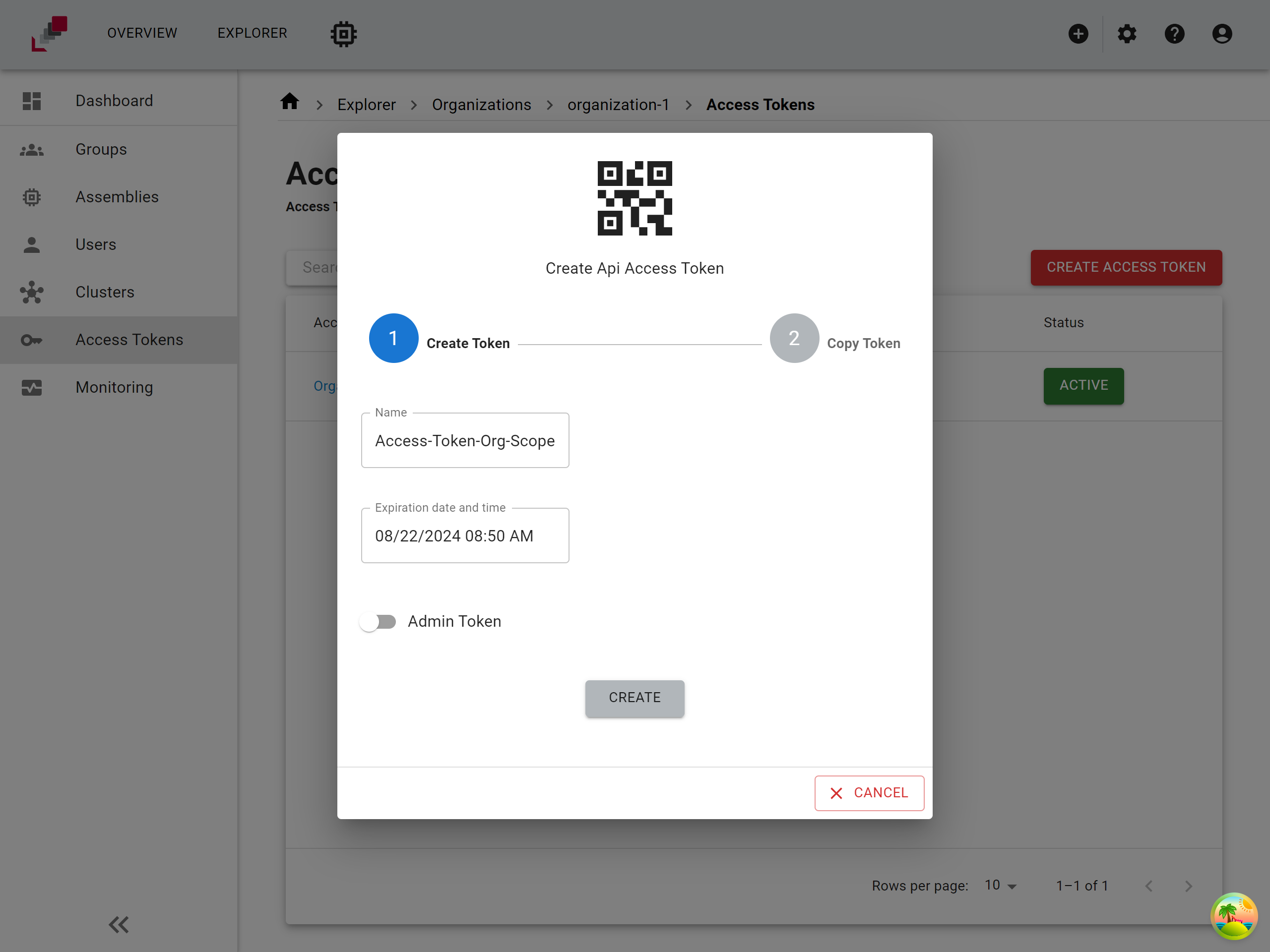
To create an access token, follow these steps:
- Go to the Organization or Group Access Token Page
- Click on "Create Access Token" Button
- Set Token Details
-
A dialog will open where you can set the following details:
- Token Name: Enter a name for your token.
- Expiration Date: Set the expiration date for the token.
- Admin Role Assignment: Choose whether the admin role should be assigned to the token.
-
Determine the Scope of the Admin Role
-
The scope of the assigned admin role depends on the scope of the token:
- Organization Level Token: Will have organization admin scope.
- Group Level Token: Will have group admin scope.
-
Click on "Create" Button
Copy and store the access token in a secure location. You will not be able to view the token again after you leave or refresh the page.
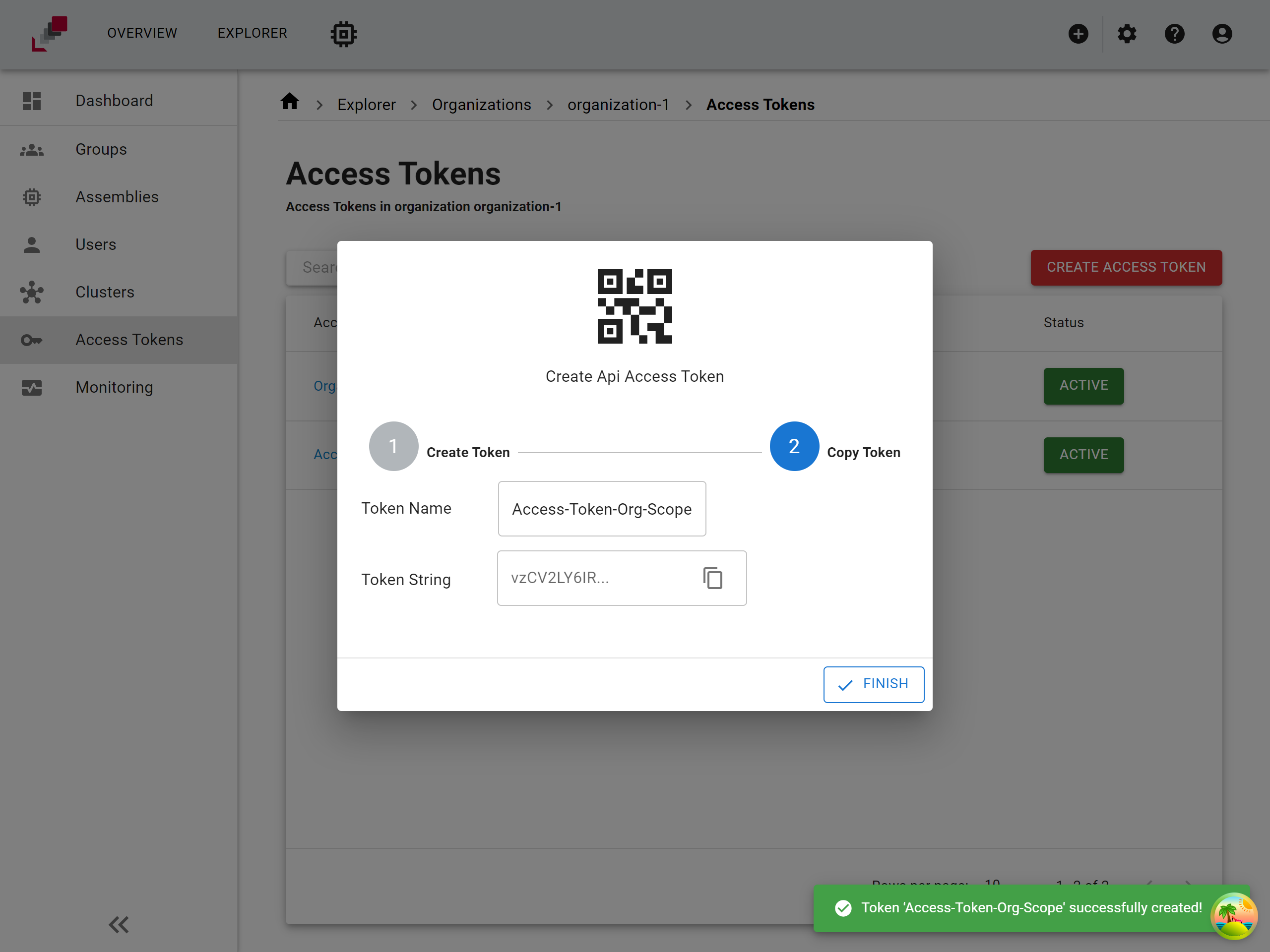
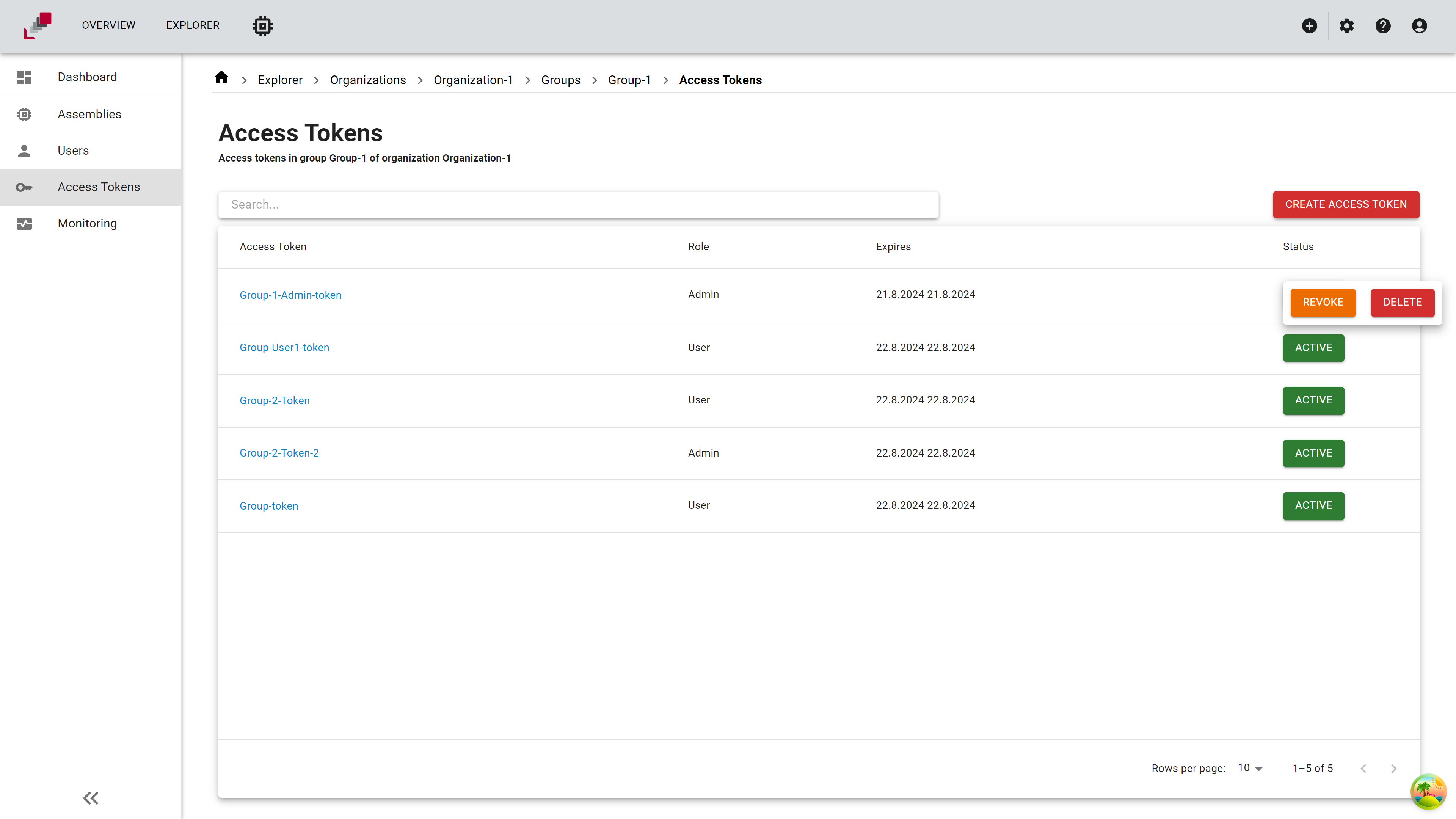
How to manage access tokens
Access tokens can be managed by revoking or deleting them. To manage an access token, click on the button in the "Status" column. Depending on the token status, you will be presented with multiple options:
- Revoke Token: This option will temporarily disable the token.
- Delete Token: This option will permanently delete the token. Note that once a token is deleted, it cannot be recovered.