Work on Virtual Machine
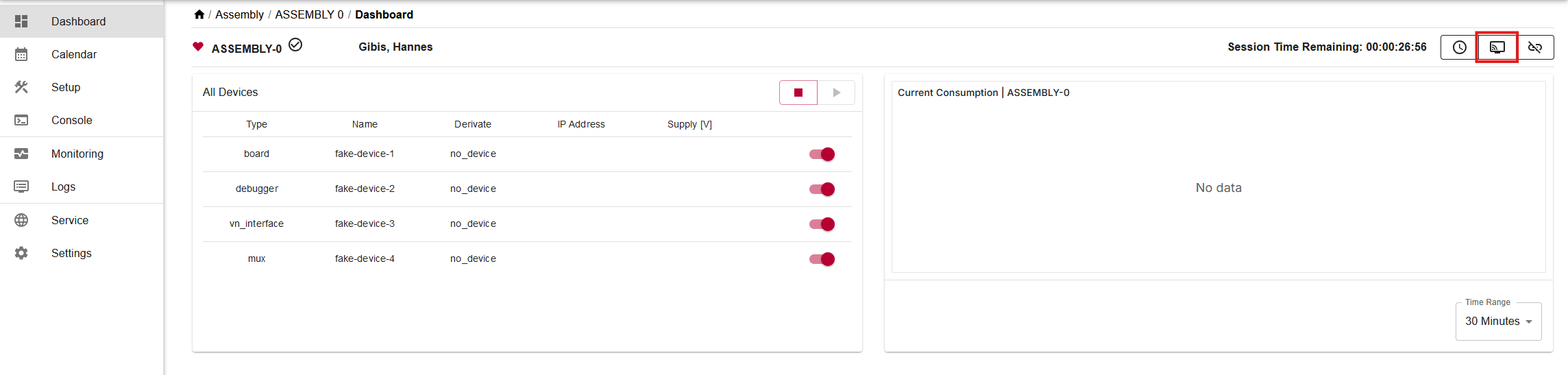
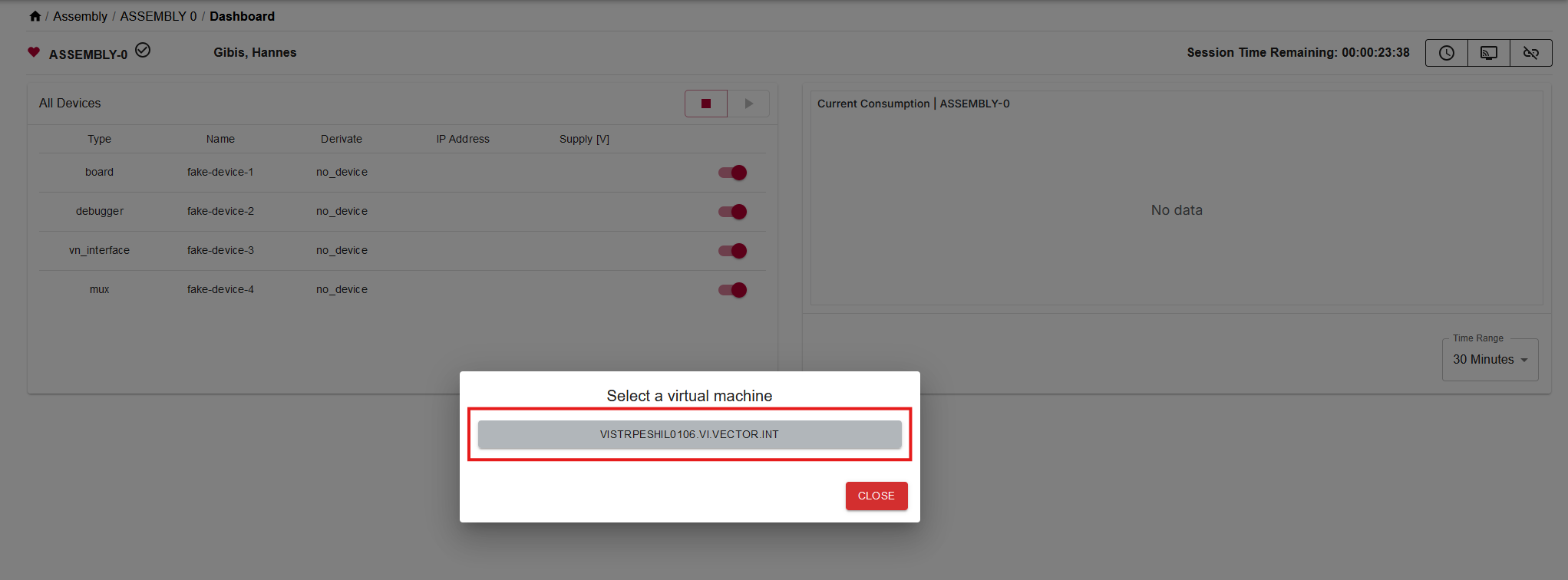
Connect to Virtual Machine
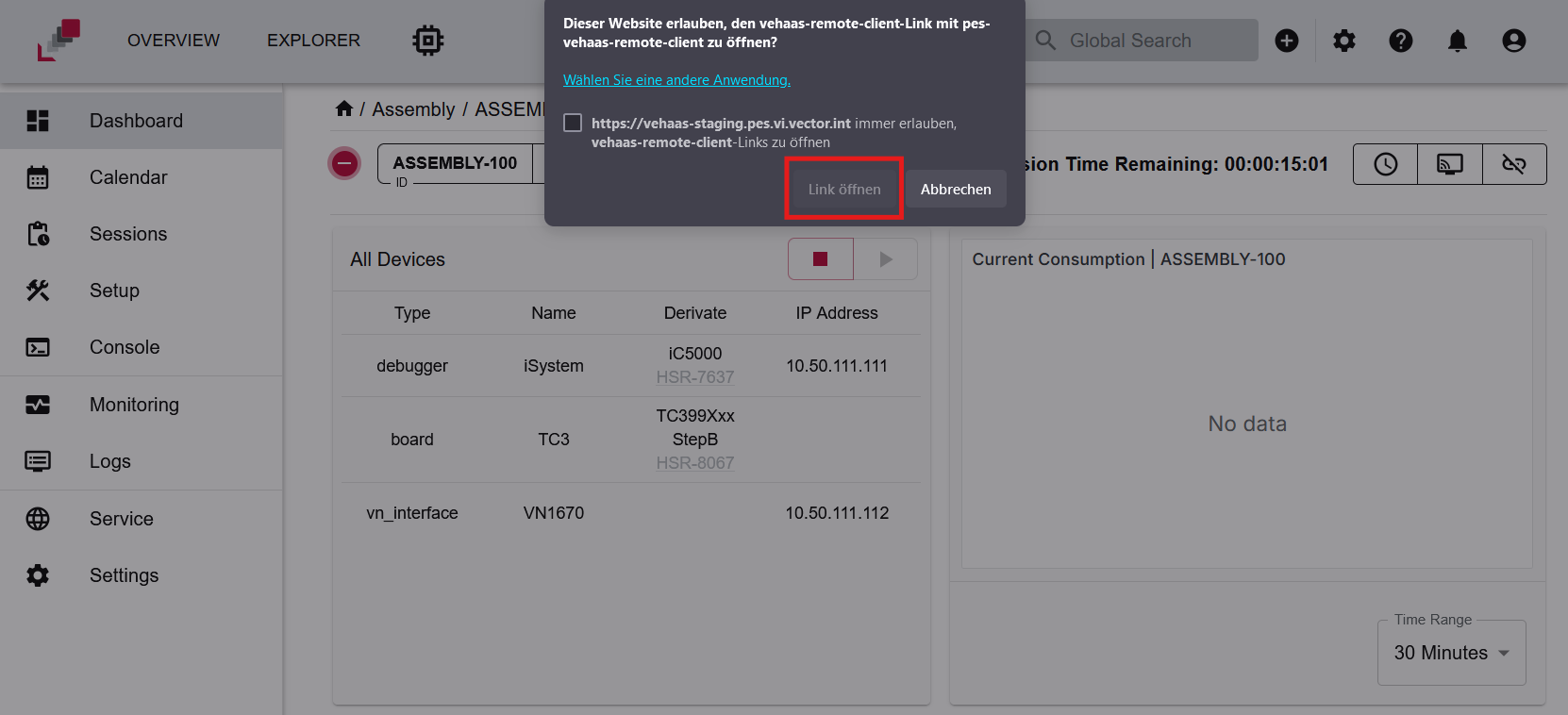
Allow veHaaS to open remote-client
After you have installed the current remote client version, the remote client is automatically opened with the selected VM.
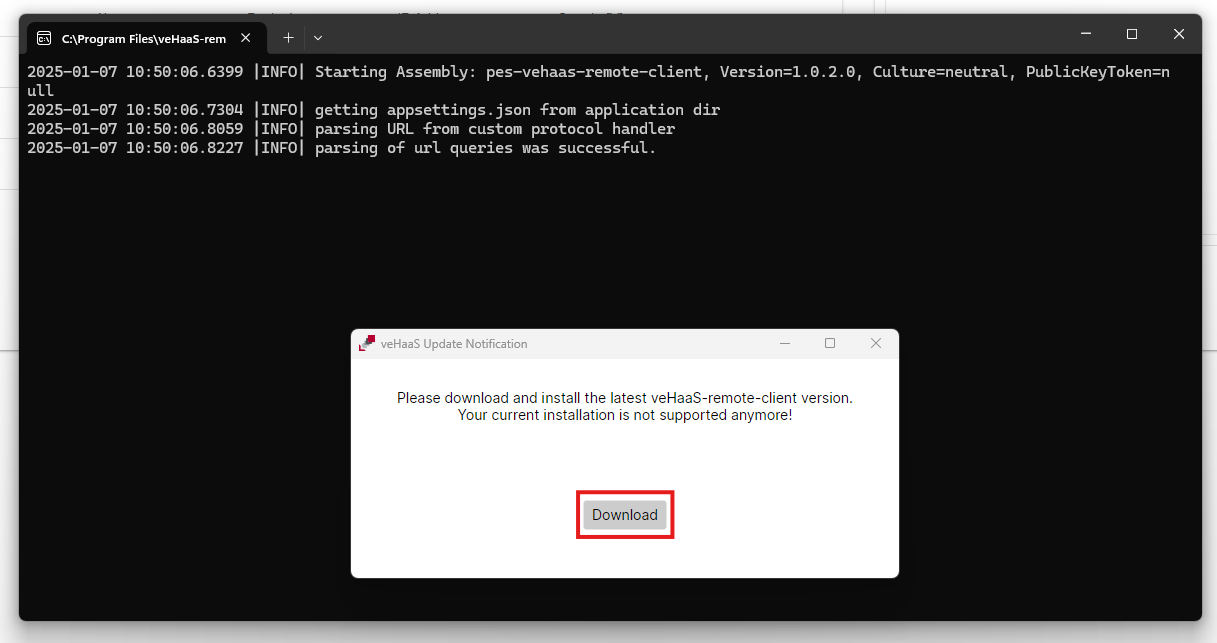
A terminal will be opened in the background, do not close it
veHaaS will automatically inform you when you need to install a new remote client version